
Rinari docsWorking with Rinari
Full access
What Full access lets Rinari do in a conversation, what she still asks about, the confirmation before turning it on and how to turn it off.
You are here
Full access is the widest permission profile for a chat: Rinari works anywhere on your computer without asking each time. Because that’s a real change in what she can touch, turning it on asks for confirmation first and says exactly what it means.
The confirmation
Choosing Full access in the composer’s permission chip opens Turn on Full access?
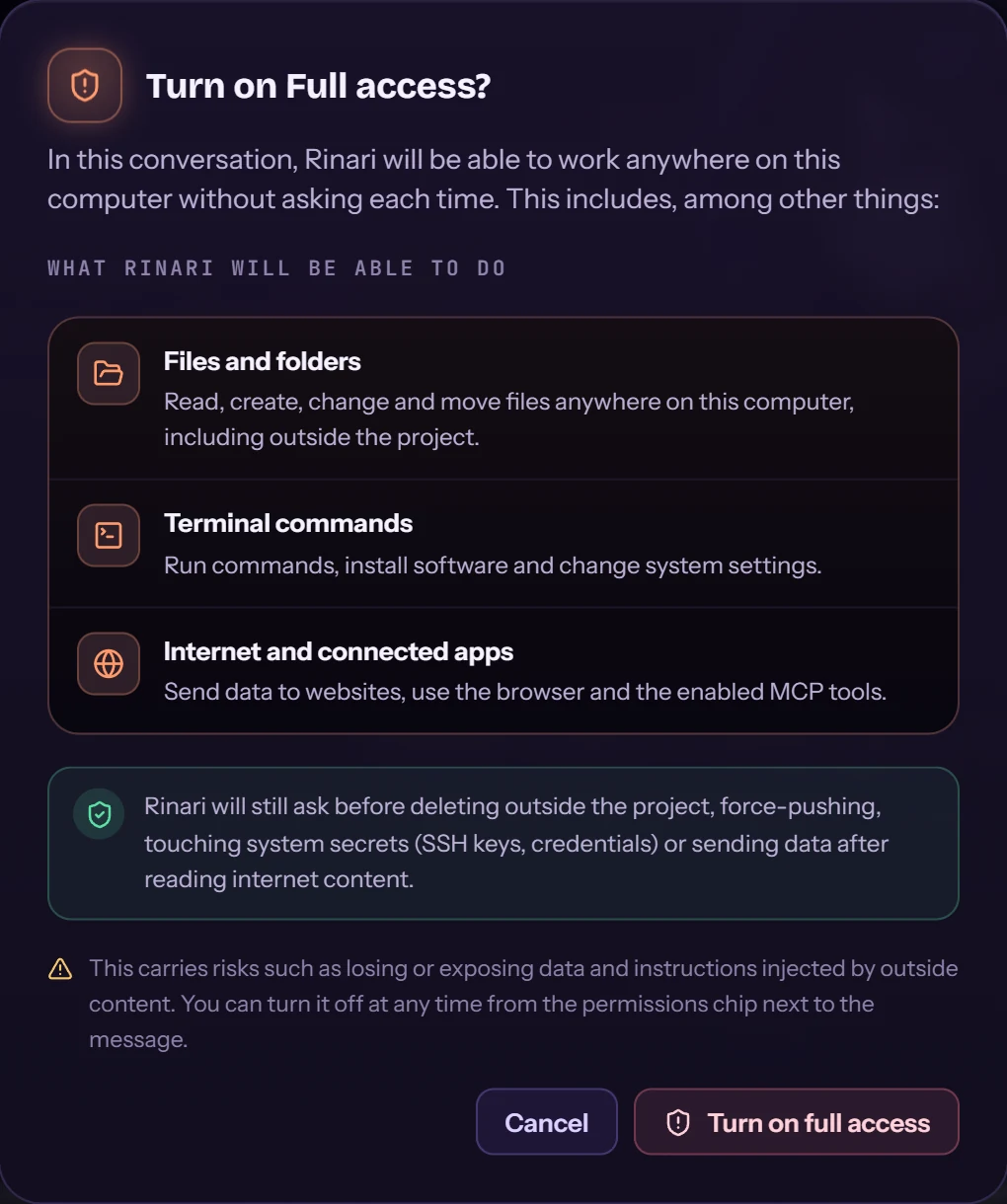
It applies to this conversation. In it, Rinari will be able to:
| Area | What it allows |
|---|---|
| Files and folders | Read, create, change and move files anywhere on this computer, including outside the project. |
| Terminal commands | Run commands, install software and change system settings. |
| Internet and connected apps | Send data to websites, use the browser and the enabled MCP tools. |
Turn on full access confirms; Cancel leaves the chat as it was.
What still asks
Even with Full access, Rinari asks before:
- deleting outside the project;
- force-pushing;
- touching system secrets, such as SSH keys or credentials;
- sending data after reading internet content.
That last one matters: if a web page or another external result tried to steer her into sending your data somewhere, the send still stops for your approval. See Approvals and permissions.
The risks
Full access carries risks such as losing or exposing data, and instructions injected by outside content. Use it for work you’d let her do unattended, in projects you trust, and keep the checkpoints and your backups in mind.
Turn it off
Turn it off at any time from the permissions chip next to the message: pick Workspace or Read-only again. See Approvals and permissions for what each profile allows.
Full access is not the same as trusting a project folder: trust lets Rinari edit that folder and load its instructions, but outside it she still asks.