
Rinari docsWorkspace
Projects with several folders
One project can span several folders — an app and its website, a backend and its client — each with its own branch and its own trust.
You are here
A project doesn’t have to be one folder. When the work spans several repositories — an app and its website, a backend and its client — put them in the same project and Rinari works in all of them from one conversation.
Create a project
Open folder in the sidebar opens the New project window: name, folders and trust in one step.
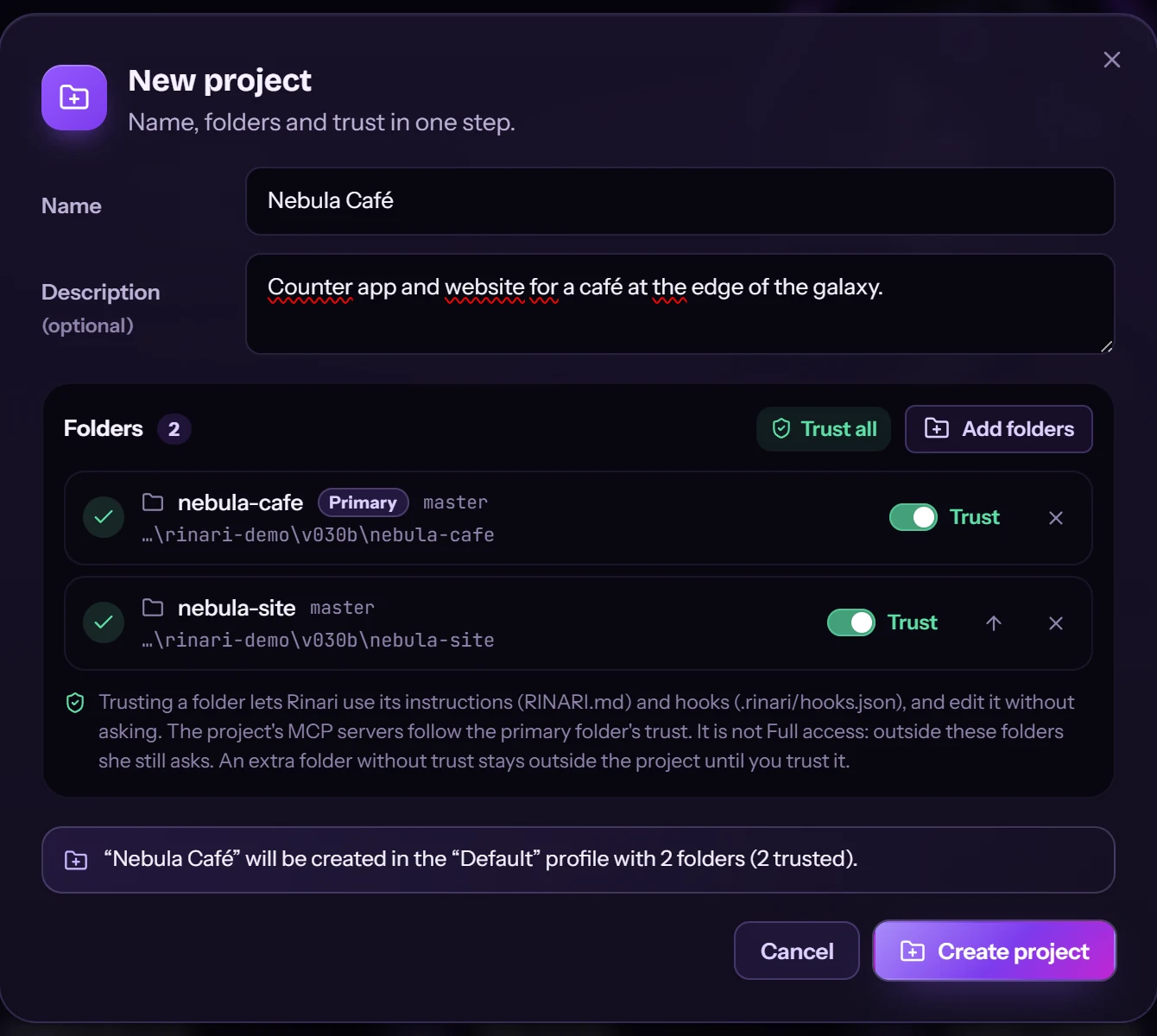
- Name and Description (optional) — what it’s for and what Rinari should know.
- Profile — which profile the project lives in, when you have more than one.
- Folders — Add folders picks one or more. Each row shows the folder’s Git branch, a Trust switch and buttons to remove it or make it the primary one.
The first folder is the primary one; Rinari works in all of them. Before you create it, a summary says which profile it goes to and how many folders are trusted. Create project finishes.
A project takes up to 16 folders. A folder can’t be your whole personal folder, Rinari’s own data folder, a folder inside another one in the list, or a folder that’s already part of another project.
Trust, folder by folder
Each folder has its own trust:
- Trusting a folder lets Rinari use its instructions (
RINARI.md) and hooks (.rinari/hooks.json), and edit it without asking. - The project’s MCP servers follow the trust of the primary folder.
- An extra folder without trust stays outside the project: Rinari doesn’t edit it without asking or load its instructions until you trust it.
Trust is not Full access: outside these folders she still asks. Trust all switches every folder on at once.
If you open a project that isn’t trusted, Rinari asks Do you trust this folder? — Trust or Not now. See Your first project.
Branches
The Git branch appears next to each project in the sidebar. When you come back to a project and its branch changed since the last work there, Rinari says so — for example The branch changed since the last work here — instead of carrying on as if nothing happened.
Delete a project
Deleting an archived project removes the project, its conversations and what Rinari keeps about it — memory, tasks, verification, index and trust. The files in its folders are not touched. It can’t be undone.